Content & Forms
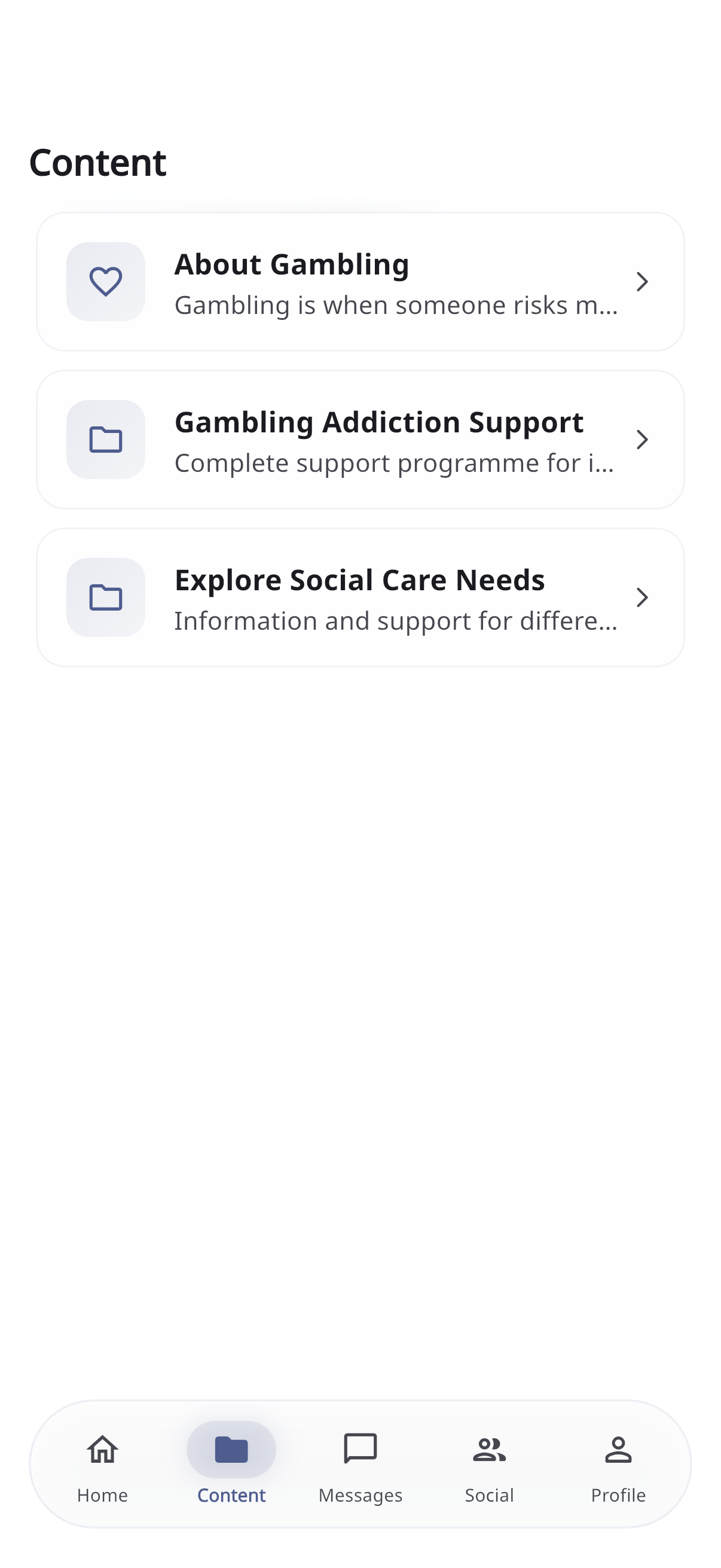
The Content tab is your library — articles, guides, videos, and forms prepared by your care team, organised into sections.
You’ll only see the content your care team has chosen for you, so what appears here is tailored to your situation and may change over time as your care progresses.
Browsing content
- Content is arranged in sections (folders) you can open to find items inside.
- When your care team has set up more than one topic for you, the Content tab groups items under a heading for each topic so they’re easy to find.
- Tap any item to open it.
- There are quick views you can reach from the Home screen’s quick actions:
- Browse Content — just the articles and guides
- My Forms — just the forms and trackers, in one easy list
Pull down to refresh the list. If something you expect isn’t here, your care team may not have added it yet — ask them if you’re unsure.
Reading an article
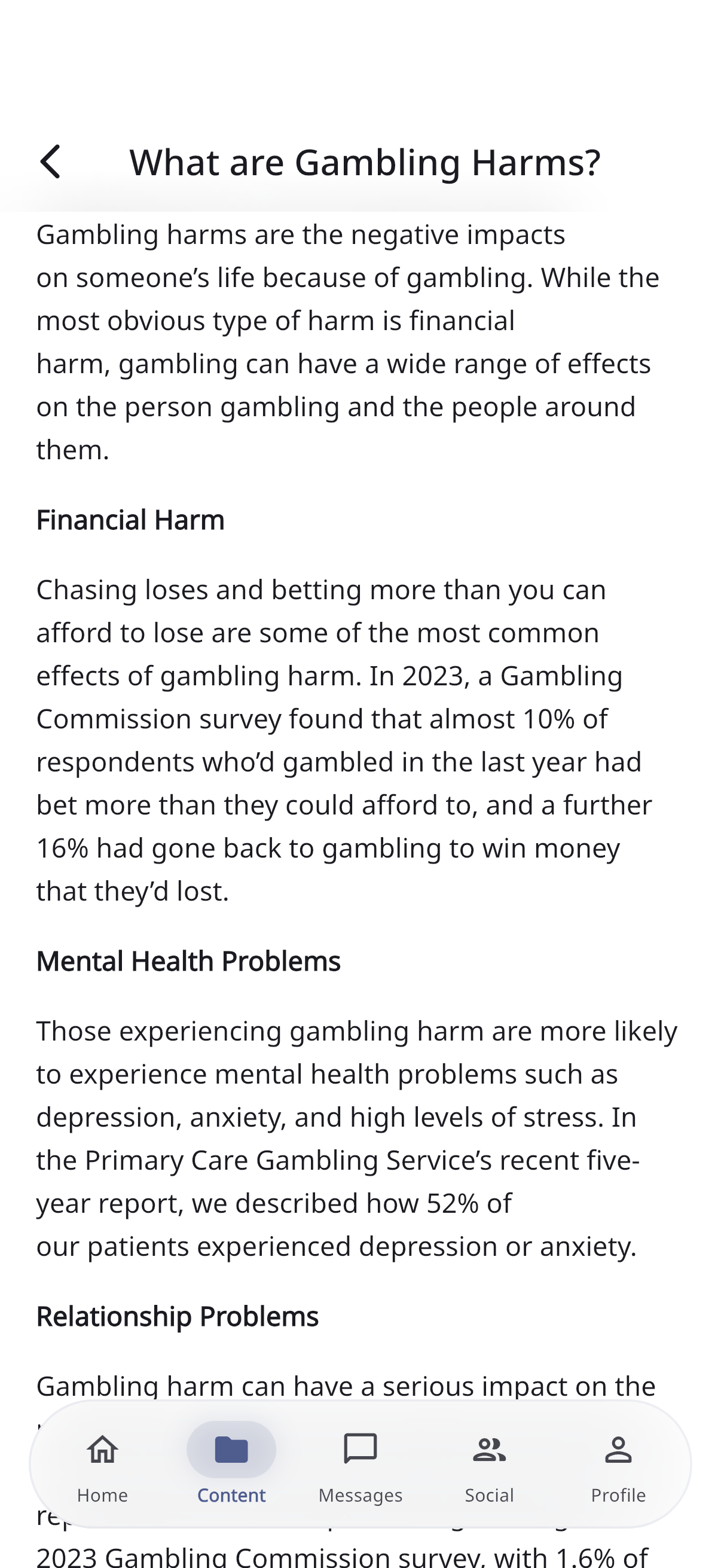
When you open a piece of content, it’s laid out for easy reading on your phone, and may include:
- Headings and formatted text
- Images and videos you can play
- Callout boxes highlighting important information
- Accordions — tap to expand a section
- Buttons that link to more information
- Lists and tables
Filling in a form
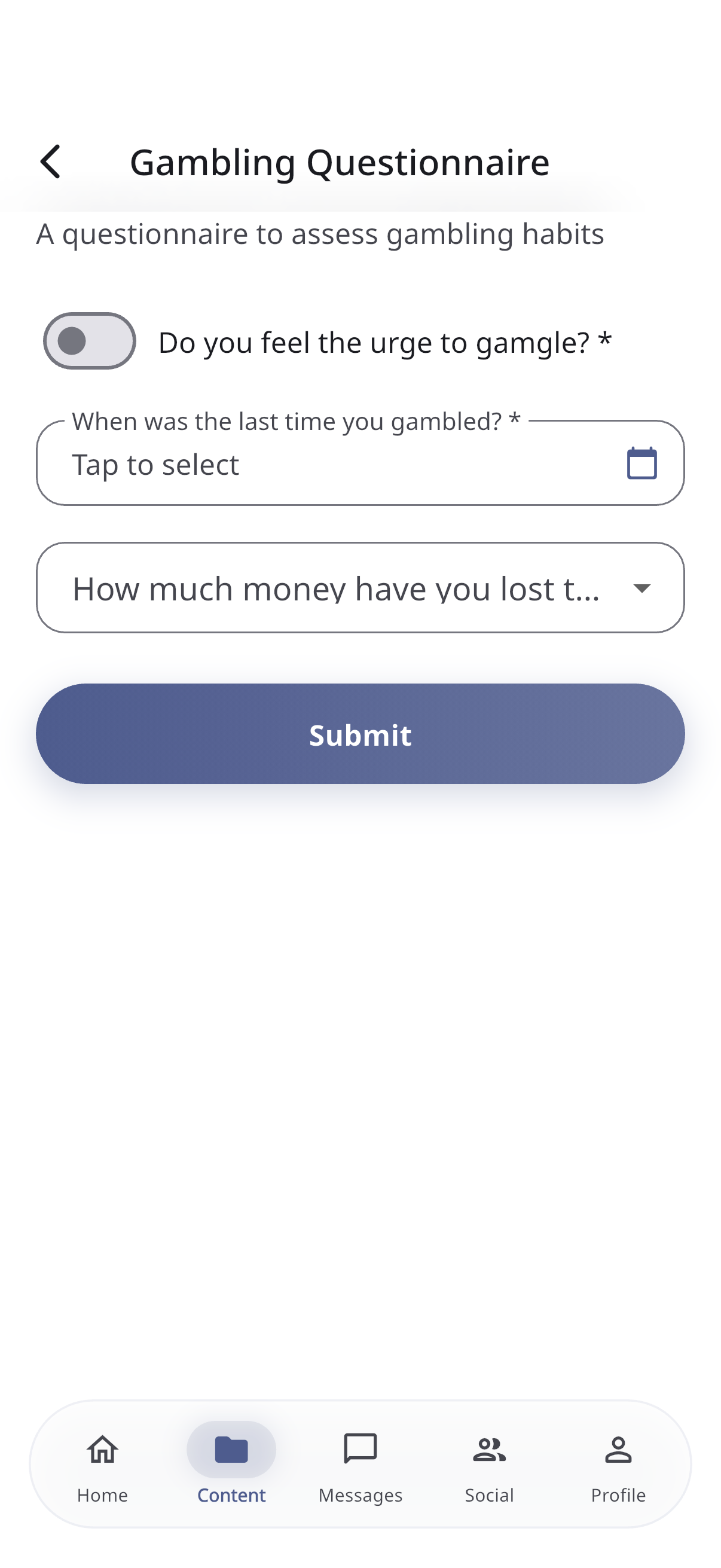
Some items are forms — questionnaires or trackers your care team would like you to complete.
- Open the form (from the Content tab, or via My Forms).
- Fill in each field. Forms can include:
- Text boxes and longer text areas
- Numbers (sometimes with a slider)
- Dropdowns and checkboxes
- Date and time pickers
- File or photo uploads (from your camera, gallery, or files)
- Required questions are marked with an asterisk (*).
- Tap Submit. You’ll see a confirmation, and your answers are saved.
Trackers (repeating forms)
Some forms can be filled in again and again over time — for example, recording a blood-test result at each appointment. Each time you submit, it’s added to your history, so you and your care team can see how things change. You’ll find all your submissions in your Health Passport.
If you can’t submit, check for any fields highlighted in red — a required answer is probably missing.