Notifications
Nexus keeps you up to date with notifications — for example, when your care team replies to a message or there’s new activity relevant to you.
The notification bell
On the Home screen, the bell icon (top right) shows a count of unread notifications. Tap it to open your notification centre.
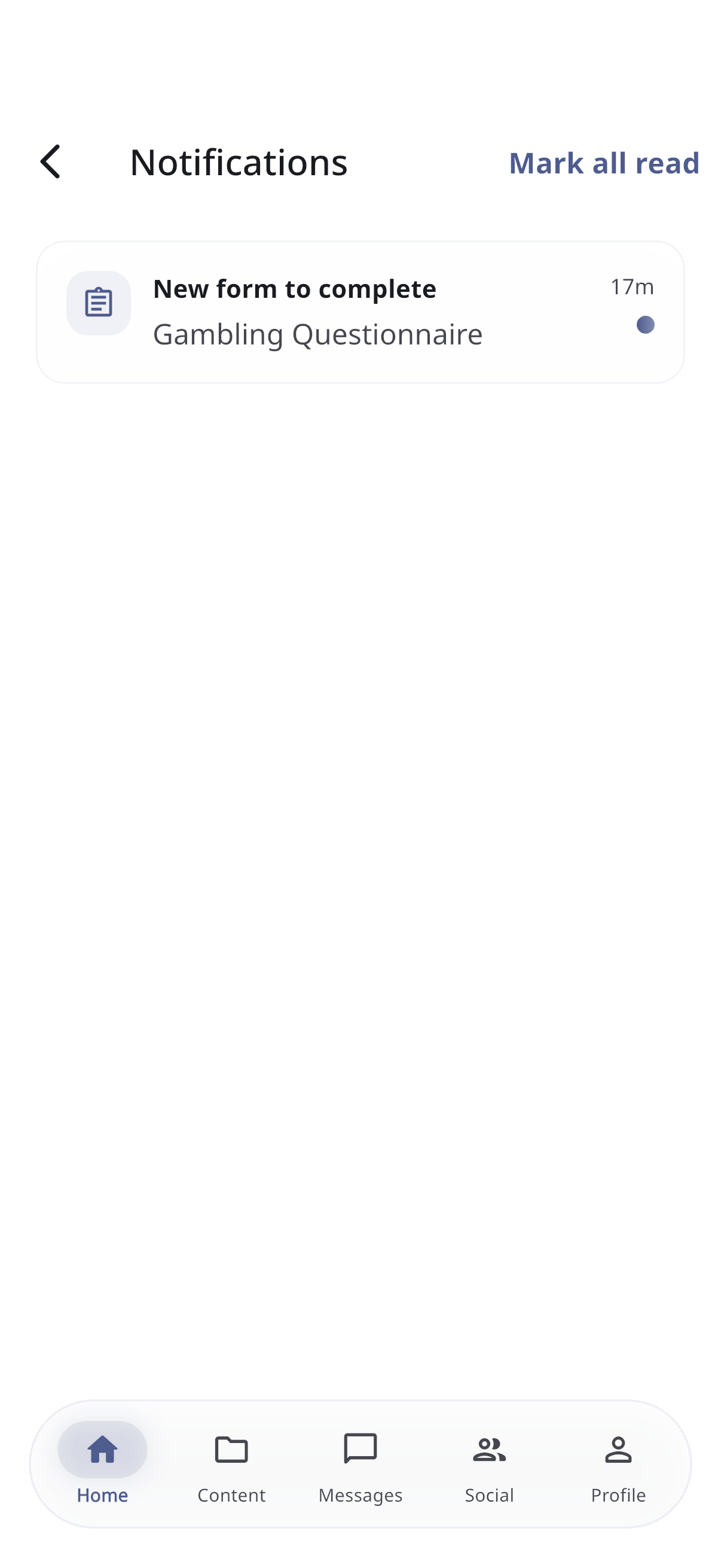
Reading notifications
- Each notification shows a title, a short message, and when it arrived.
- Unread notifications are highlighted.
- Tap a notification to open whatever it relates to (for example, a message or a piece of content).
- Tap Mark all read to clear the unread highlights.
Pull down to refresh. When you’re all caught up, you’ll see a friendly “all caught up” message.
Push notifications on your phone
To receive notifications even when the app is closed, allow notifications for Nexus in your phone’s settings. You can manage this from the Profile tab — tap Notifications to open your device’s notification settings. See Profile & settings.