Community
If your organisation has the community turned on, the Social tab is your community space — read posts, share your own, and join discussions.
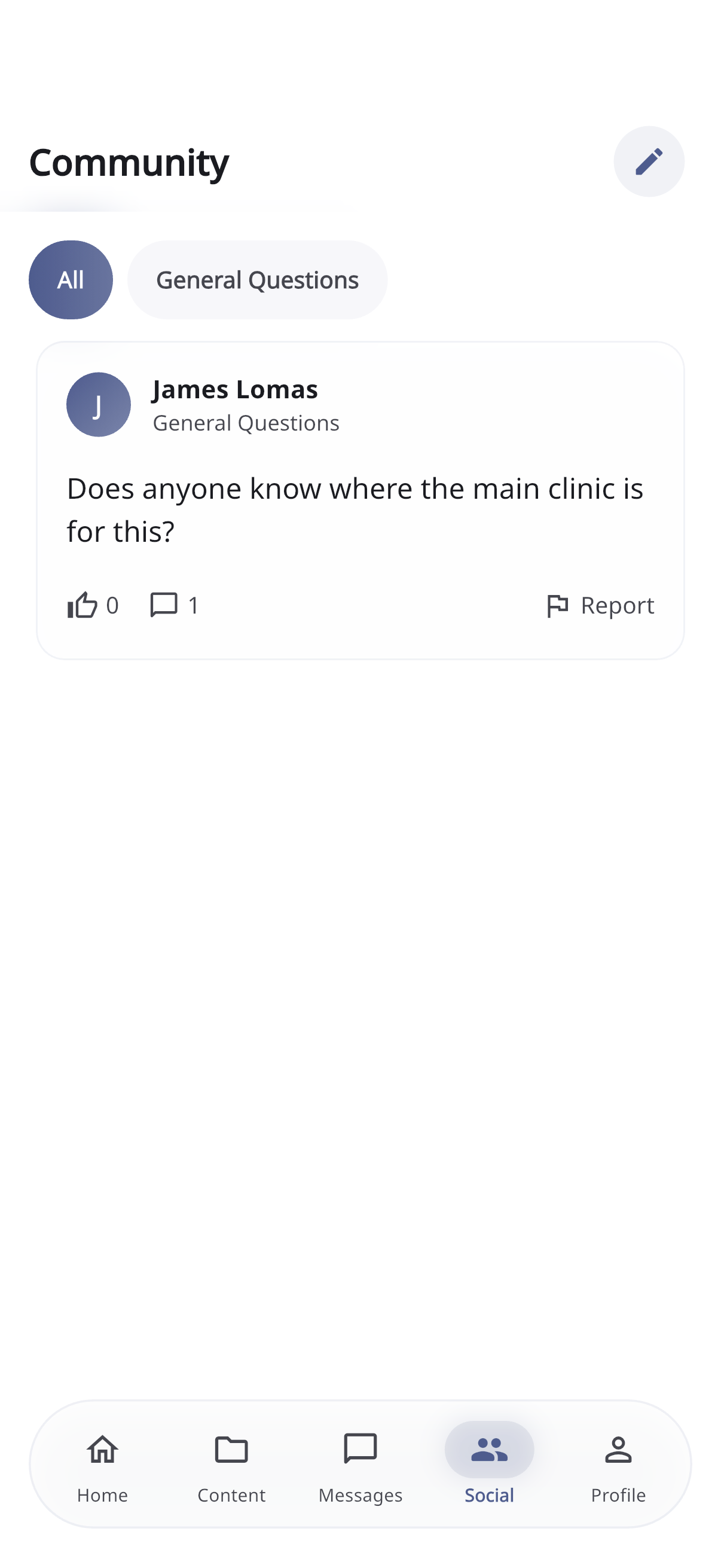
Browsing the feed
- The feed shows posts, newest first.
- Each post shows who wrote it (or Anonymous), its topic, the text, any photos, and how many likes and comments it has.
- Use the topic chips along the top to filter the feed to a particular topic, or tap All to see everything.
- Tap a post to open it in full.
Pull down to refresh. New posts and comments appear in real time.
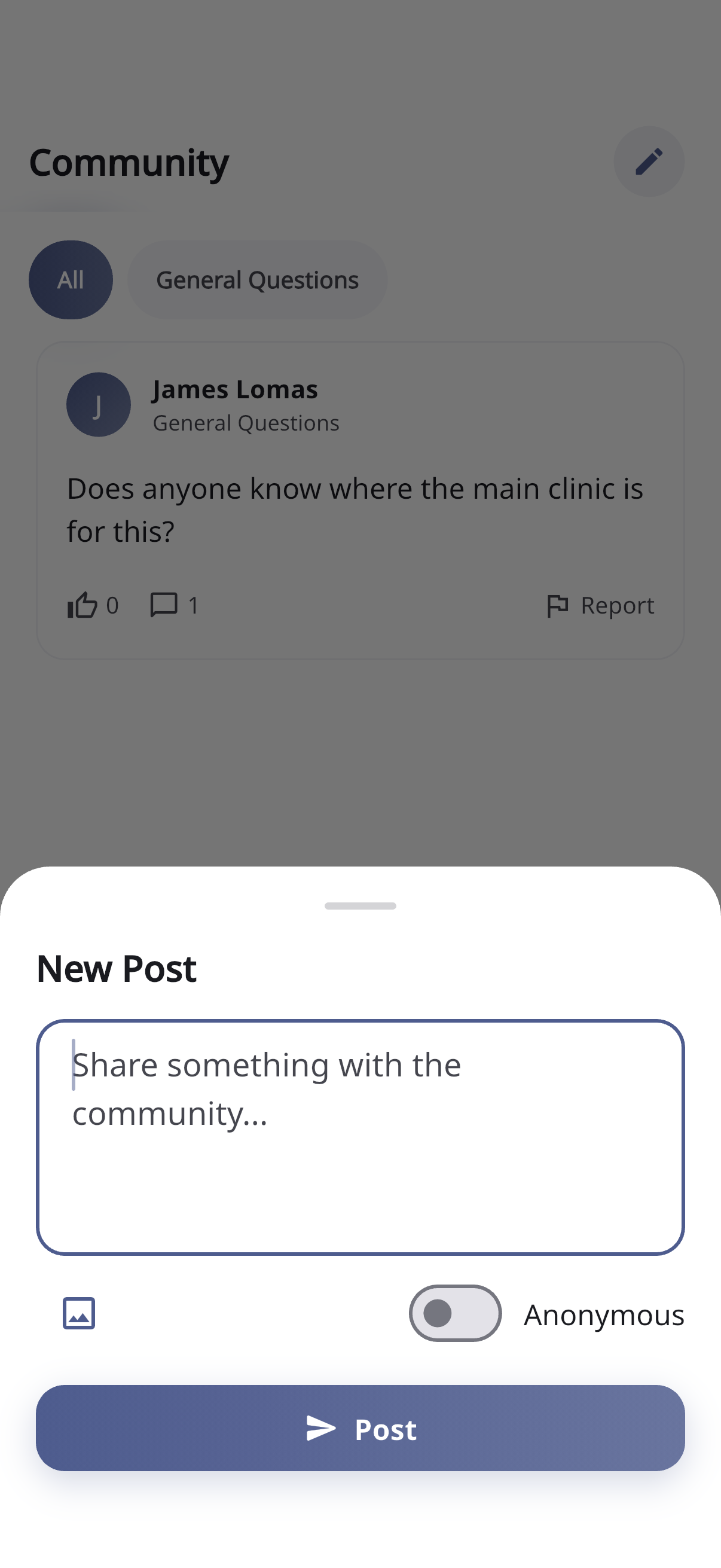
Writing a post
- Tap the pencil/edit icon at the top of the Social tab.
- Choose a topic.
- Add a title and your message.
- Turn on Post anonymously if you’d rather not show your name.
- Optionally attach photos or videos.
- Tap Post.
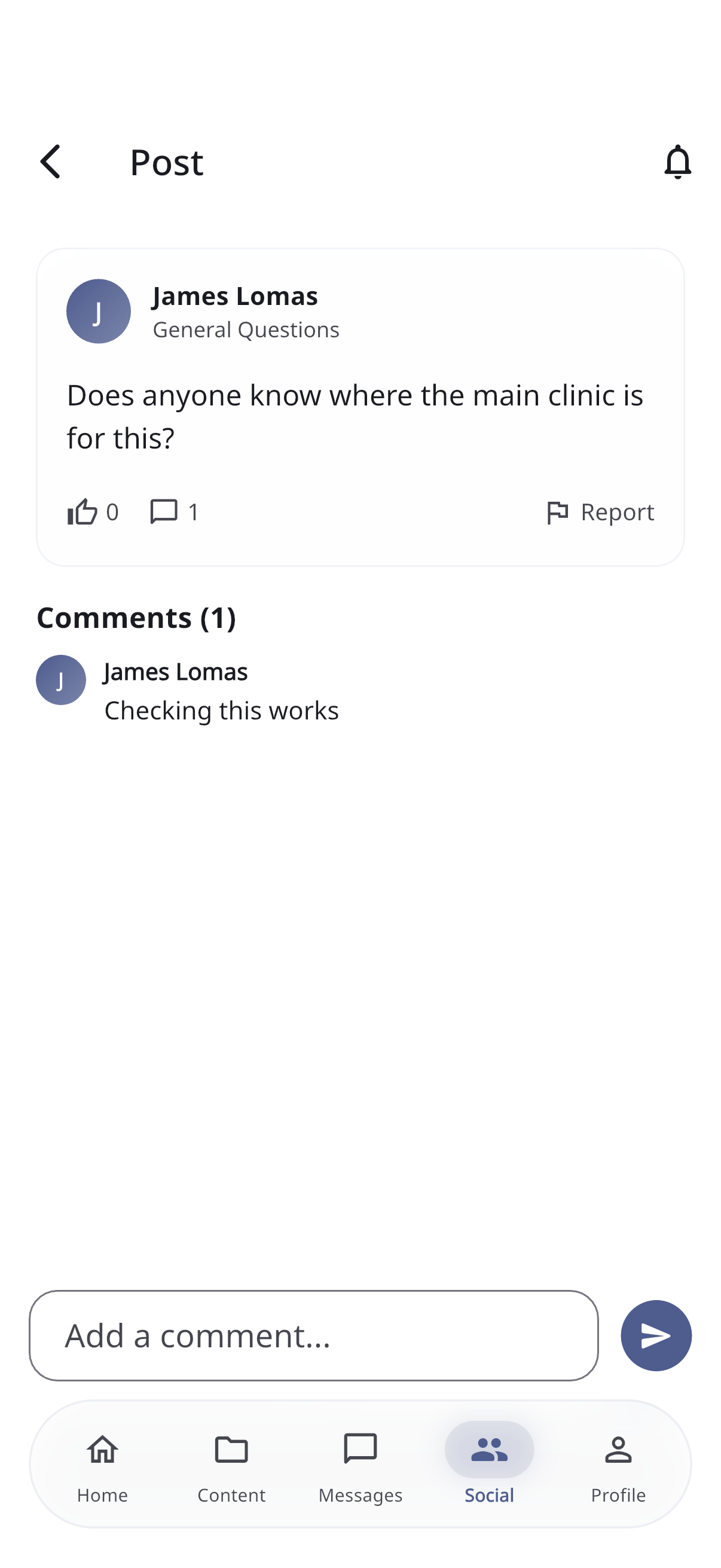
Interacting with a post
Open any post to:
- Like it (tap the heart)
- Follow it, so you’re notified about new comments
- Comment — type in the box at the bottom and send
- Like other people’s comments
Reporting something
If you see a post or comment that’s inappropriate, you can report it. Choose a reason, and your care team’s moderators will review it. This helps keep the community safe and supportive for everyone.
Community tips
- Be kind and respectful — others may be going through difficult times.
- Don’t share personal medical details you wouldn’t want public; use Messaging for anything private with your care team.
- Posting anonymously is always an option if you’d prefer.