Profile & Settings
The Profile tab is where you manage your account, get help, and sign out.
At the top you’ll see your avatar (your initials) and your email address.
Settings
- Switch Organisation — change to a different organisation you belong to (opens the organisation selector).
- Join Organisation — enter a code to join a new organisation.
- Change Password — set a new password for your account (see below).
- Two-Factor Authentication — add a sign-in code from an authenticator app for extra security (see below).
- Notifications — opens your phone’s notification settings for the app.
- Usage Analytics — turn anonymous app-usage data on or off. This helps improve the app and contains no health data or personal details.
Changing your password
Tap Change Password, enter your current password, then choose a new one. Your new password needs to be at least 12 characters and include an uppercase letter, a lowercase letter, a number and a special character (like ! or ?).
When you change your password, the app signs you out of any other phones or tablets you were logged in on — the device you’re using stays signed in. If you think someone else knows your password, changing it here is the quickest way to keep your account safe.
If you’ve forgotten your password and can’t log in, use Forgot password? on the login screen instead.
Two-factor authentication
Two-factor authentication adds an extra step when you sign in: a 6-digit code from an authenticator app on your phone (such as Google Authenticator or Microsoft Authenticator). Even if someone learns your password, they can’t get into your account without the code. It’s optional, but we recommend it.
To turn it on:
- Tap Two-Factor Authentication and then Set up two-factor authentication.
- Scan the QR code with your authenticator app (or type in the key shown below it).
- Enter the 6-digit code your app shows and tap Verify & turn on.
From your next sign-in, the app will ask for a code from your authenticator app after your password.
You can turn it off again from the same screen. If you lose your phone or can’t access your authenticator app, contact your care team so they can reset it for you.
Support & help
- FAQ — quick answers to common questions (see below).
- Privacy Policy — read how your data is handled.
- Terms & Conditions — read the terms of use.
FAQ
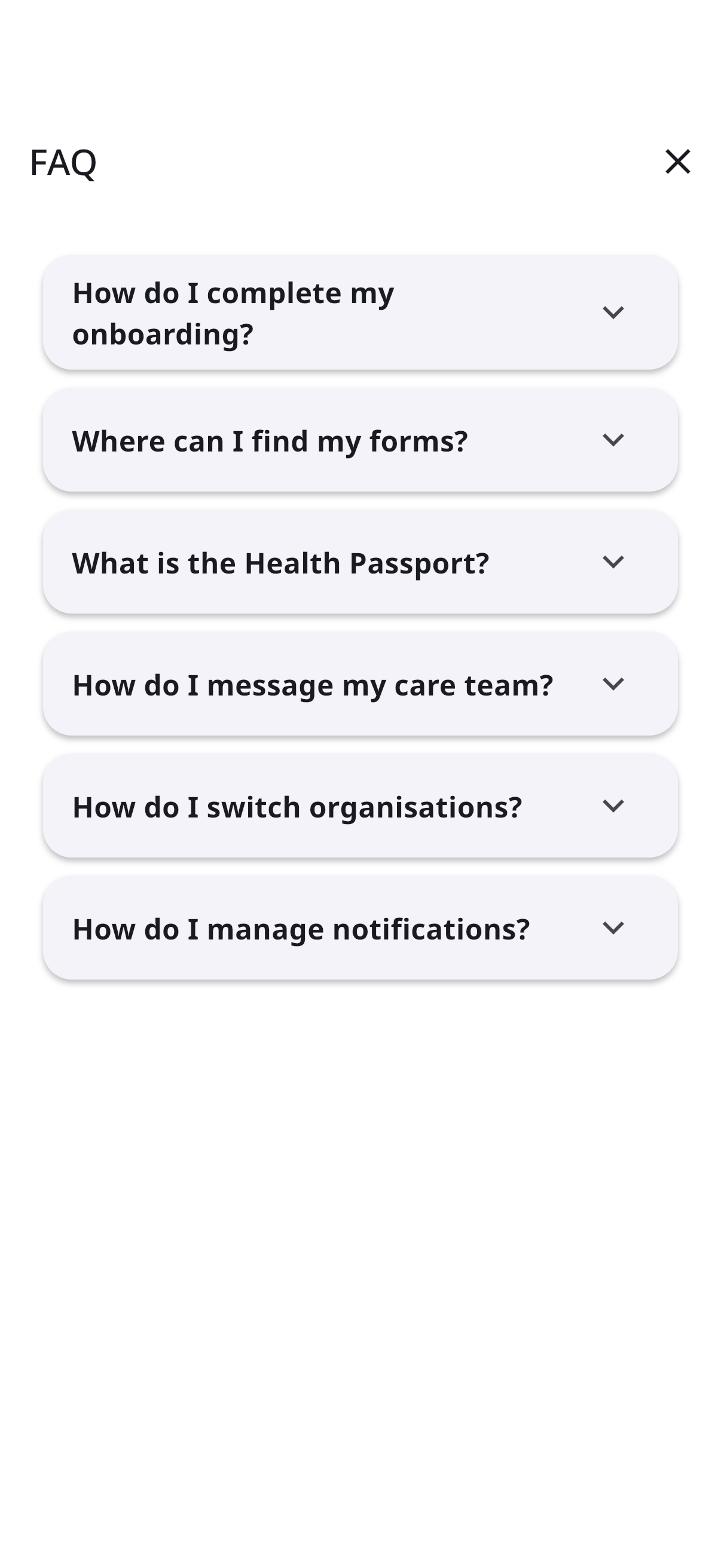
The in-app FAQ answers questions like:
- How do I complete my onboarding?
- Where can I find my forms?
- What is the Health Passport?
- How do I message my care team?
- How do I switch organisations?
- How do I manage notifications?
Tap a question to expand its answer.
Signing out
Tap Sign Out to log out. This clears your session on the device and returns you to the login screen. You can log back in any time with your email and password.
Need more help?
If something isn’t working or you have a question the FAQ doesn’t cover, contact your care team — the quickest way is usually the Messages tab (if your organisation has it enabled).