Messaging Your Care Team
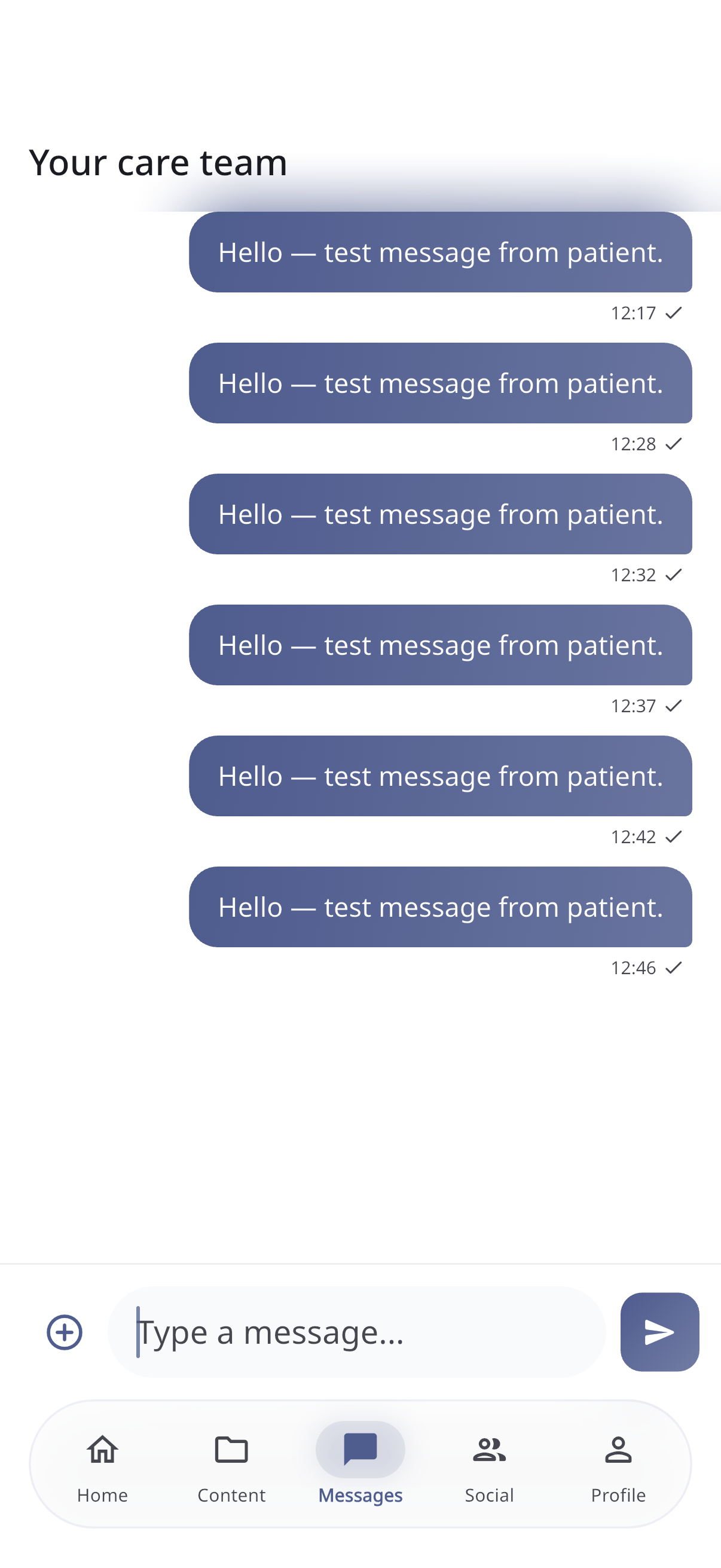
If your organisation has messaging turned on, the Messages tab lets you chat directly with your care team.
⚠️ Messaging is not for emergencies. If you need urgent help, contact your care team by phone or call your local emergency number.
Sending a message
- Open the Messages tab.
- Type your message in the box at the bottom.
- Tap send (the paper-plane icon).
Your first message starts the conversation; after that, everything stays in one thread.
Attaching photos or files
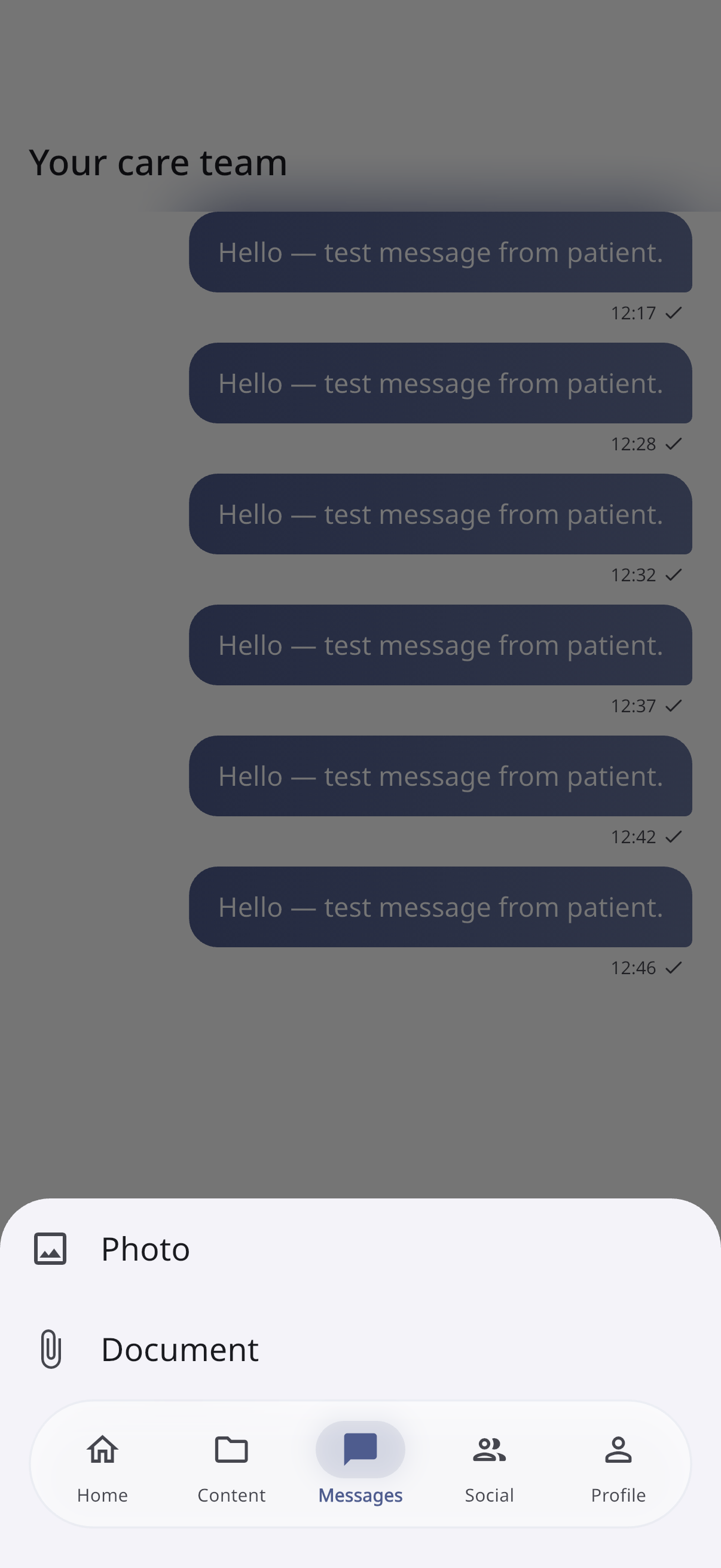
Tap the attachment (paperclip) icon to add something to your message:
- Take a photo or video with your camera
- Choose from your gallery
- Pick a file from your device
Then tap send.
Replies and updates
- Messages from your care team appear in the same thread.
- New messages arrive in real time — you don’t need to refresh.
- You may also get a notification when there’s a reply.
Tips
- Be clear and specific so your care team can help quickly.
- Remember your care team may not reply instantly — they’ll respond as soon as they can.